Autodesk publishes minimum specs for Revit, and here's the honest truth about them: they'll let you open the software, but they won't let you work in it. The gap between "Revit launches" and "Revit runs smoothly on a real project" is wide, and if you spec a machine to the minimum, you'll feel it every time you switch views.
So let me tell you what actually matters, in plain terms. There's really one number that decides your experience — RAM — and a couple of things people consistently get wrong. Let's start with the part that saves you the most grief.
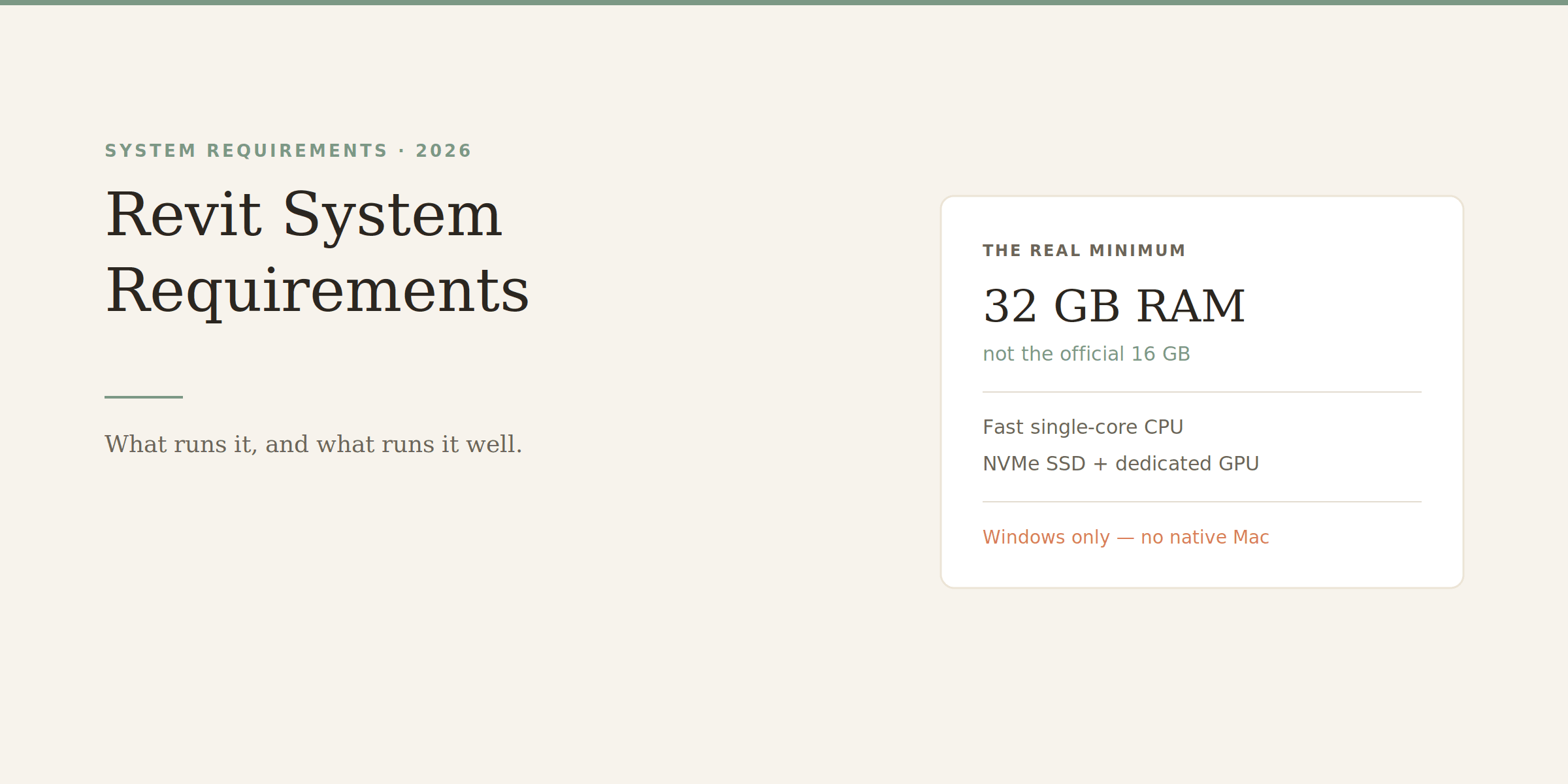
If you take one thing away, make it this: get 32 GB of RAM. Autodesk lists 16 GB as the requirement, and technically Revit will run on it — but only for small models, and you'll hit a wall the moment your project grows or you open a few views at once. When Revit runs out of RAM, it starts using your disk as memory, and everything turns to sludge. The professional consensus, near-universally, is 32 GB as the practical floor and 64 GB for large or heavily-linked projects.
There's a nice rule of thumb for this that's worth internalizing:
The 20× rule — your system RAM should be roughly 20 times the size of your Revit file. A 500 MB model wants around 32 GB once you account for the OS and linked files. A 1 GB+ model pushes you toward 64 GB. It's a rough guide, but it maps to reality well, and it's a better way to think about it than a single blanket number.
The good news: RAM is one of the cheapest upgrades in a computer. This is genuinely not the place to save money — the jump from 16 to 32 GB does more for your daily experience than almost anything else.
Here's where people overspend. Revit is, for most of what you do, a single-core application. Sketching, editing, switching views, regenerating — these lean on how fast one core runs, not how many cores you have. So a processor with a high base clock beats a processor with lots of slower cores, even if the many-core chip looks more impressive on paper.
The practical advice: prioritize single-core speed. A recent high-clock Intel Core Ultra or AMD Ryzen chip is ideal. Don't pay a premium for a 32-core workstation CPU thinking it'll make Revit fly — it won't, and that money is better spent on RAM or an SSD.
One 2026 wrinkle: Revit 2026 introduced an Accelerated Graphics tech preview, which starts shifting some of the navigation work (panning, orbiting, zooming) toward the GPU. So the GPU matters slightly more than it used to for smooth movement — but the core modeling work is still very much CPU-and-clock-speed bound.
For plain Revit modeling, the graphics card mostly handles viewport display, and you don't need much — a mid-range card like an RTX 3050 or 3060 handles the viewport without issue. Autodesk certifies a dedicated GPU with at least a few GB of VRAM, and for pure BIM that's plenty.
The GPU only becomes a real expense when you add rendering. The second you bring in Enscape, V-Ray, Lumion, or Twinmotion, the graphics card moves to center stage, and you'll want a stronger NVIDIA RTX card with 8 GB+ of VRAM. So the honest rule is: buy a modest GPU for modeling, and only spend up if rendering is part of your workflow.
This one's easy. Opening models, saving, syncing to the cloud — all of it hammers your storage. An NVMe SSD makes a tangible, everyday difference over a SATA SSD, and a night-and-day difference over a spinning hard drive. Autodesk wants 30 GB of free space for the install (and recommends 100 GB free for temporary files), but the type of drive matters more than the size. Get an NVMe.
I'll be blunt because a lot of people ask: Revit doesn't run on a Mac. Not natively. There's no macOS version, full stop.
The workarounds are poor. Parallels can technically open tiny files but chokes on anything real. Boot Camp is gone on Apple Silicon Macs, so that door is closed too. In practice, Mac users who need Revit either keep a separate Windows workstation or use a cloud-hosted Windows setup. If you're a committed Mac user, this is worth knowing before you commit to Revit at all — it may push you toward Archicad or another BIM tool that does run on macOS.
If you want a machine that just works for professional Revit without overthinking it:
- A recent high-clock CPU (Intel Core Ultra 7/9, or AMD Ryzen 7/9)
- 32 GB of RAM (64 GB if you work large)
- A 1 TB NVMe SSD
- A dedicated GPU with 8 GB VRAM (more if you render)
- Windows 11
That's a solid, no-regrets Revit workstation. Spend extra on RAM and storage before the GPU, unless rendering is a daily part of your work.
Now that you know what it needs, see what it costs — how much Revit costs in 2026. If the hardware or price is steep, Revit LT vs full Revit covers the lighter option (though note LT isn't actually easier on hardware). And to work faster, grab the Revit keyboard shortcuts guide.