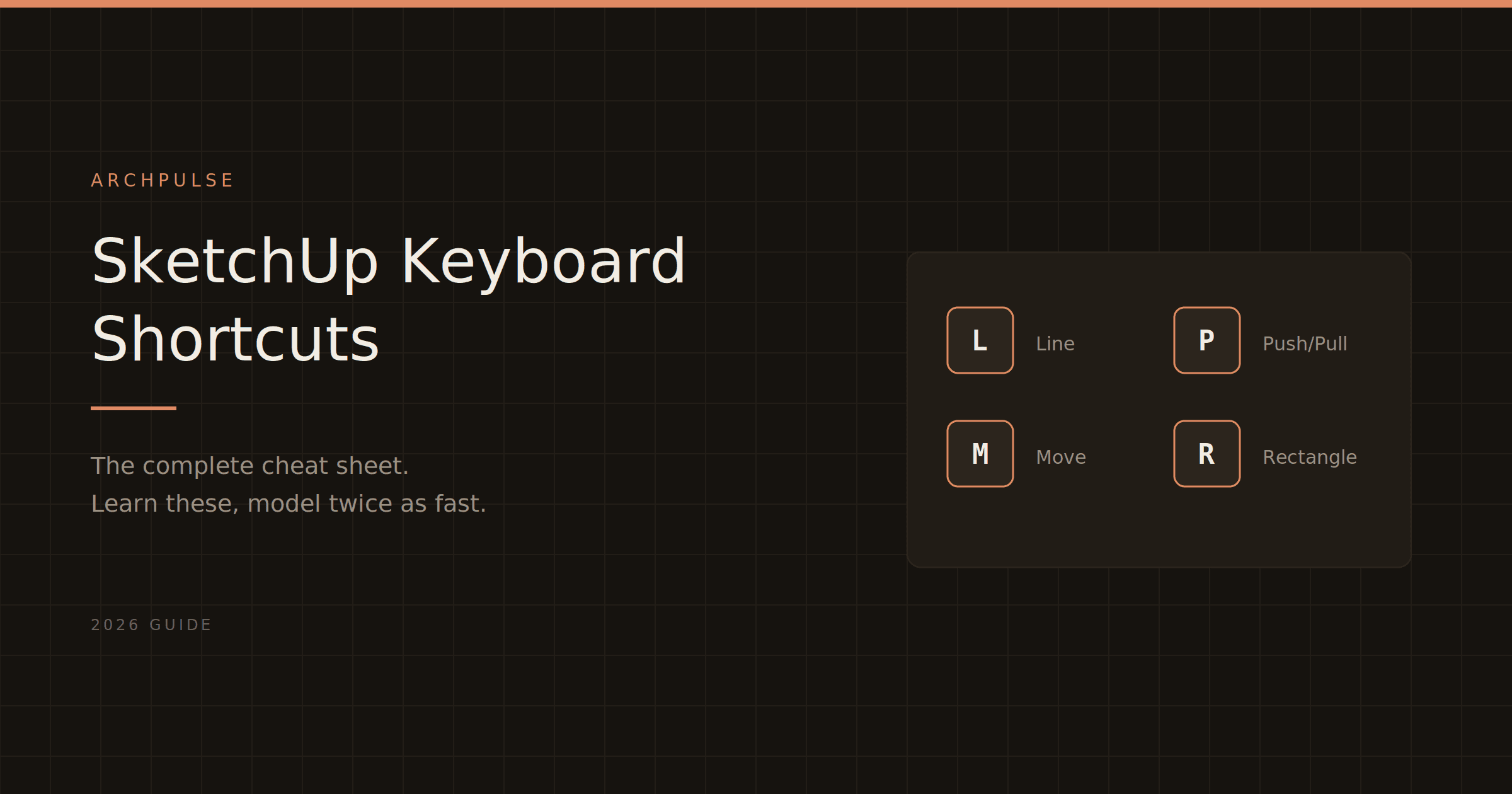
SketchUp Keyboard Shortcuts: The Complete Cheat Sheet (2026)
Every SketchUp keyboard shortcut worth memorizing, organized by what you're doing — drawing, modifying, navigating, and viewing. Plus how to set your own custom shortcuts.
Learning SketchUp's keyboard shortcuts is the single fastest way to speed up your modeling. Reaching for a toolbar button breaks your flow; a keystroke keeps your eyes on the model. Here's the complete cheat sheet, organized by what you're actually doing rather than one giant alphabetical list — because you learn them faster grouped by task.
These are the default shortcuts. If any conflict with your habits, you can remap every one of them (covered at the end).
Moving, copying, and transforming what you've drawn:
Shortcut
Tool
M
Move
Q
Rotate
S
Scale
Spacebar
Select
E
Eraser
T
Tape Measure
A key trick: hold Ctrl (Windows) or Option (Mac) while using Move (M) to copy instead of move. Combined with typing a distance and then a multiplier (like 5x), it creates evenly spaced arrays — one of SketchUp's most powerful habits.
A 3-button scroll-wheel mouse is essentially required for SketchUp — orbit, pan, and zoom all live on the middle button, and they're the moves you'll do thousands of times a day.
Every shortcut above is remappable, and setting your own for the tools you use most is worth five minutes:
Go to Window → Preferences (Windows) or SketchUp → Settings (Mac)
Select the Shortcuts panel
Find the command in the list, or search for it
Click in the "Add Shortcut" field and press your desired key combination
Assign, and you're done
A common workflow tip: assign single-key shortcuts to the tools you reach for constantly (like a plugin you use hourly) so they're as fast as the built-in ones.
The fastest way to learn these is to keep them visible until they're automatic. Screenshot the tables above, or keep this page open in a tab, for your first week — the shortcuts move to muscle memory faster than you'd expect, and once they do, your modeling speed roughly doubles.
Revit LT is the cheaper version, but 'cheaper' comes with real trade-offs. Here's exactly what you give up, who LT actually suits, and why it doesn't save you anything on hardware.
Revit's shortcuts are two-letter codes you type without even pressing Enter, and learning the common ones is the fastest way to speed up. Here's the cheat sheet, grouped by task, plus how to make your own.
Autodesk's minimum specs will technically open Revit and then make you miserable. Here's what actually runs it well in 2026, the simple RAM rule that saves you, and why Revit still doesn't run on a Mac.